To open the Index Configure dialog, click Tools, Page Indexes, Generate and then click either the New or Edit button on the Index Generate Dialog.
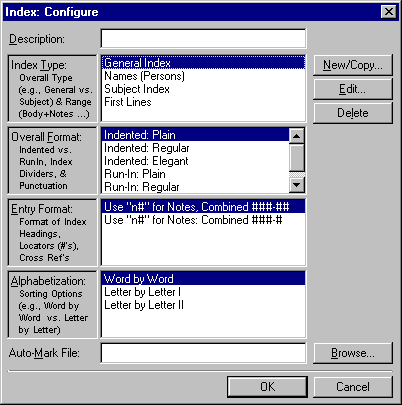
The Index Configure dialog presents you with four groups of general formatting settings for your index:
•Index Type: the categories that are to be included in the index [see Introduction for definition of categories]),
•Overall Format: the layout of the text of the index
•Entry Format: the layout of the page numbers listed for each term
•Alphabetization: the rules for sorting entries
You can edit each group of settings in turn by clicking in the white areas in each section. Doing so will activate three buttons on the far right: New/Copy, Edit, and Delete, which will either set up new rules for each setting, edit the current rules, or delete the current settings. Clicking either New/Copy or Edit will bring up a unique dialog for each section through which you can edit the settings.
Index Type: This setting governs the categories and subcategories of marked items to be included in the index, the portions of the document to be indexed (body, notes, text in frames, text in citations, etc.), and different page numbering schemes. When you click New/Copy or Edit button in this section of the Index: Configure dialog, the Index Options dialog will open.
The list of categories to be included in the index applies when you have marked certain words in your document as belonging to certain categories (see Introduction and Marking Using the Index: Mark Toolbar). The General Index (NB's default) includes all categories. However, if you are generating an index of Personal Names appearing in the text, for example, you will only want to include the "Names (Persons)" category. You can also tell NB to handle all marked items that haven't been marked in a category as though they did belong to a particular category and subcategory by checking the "Treat As Specified Type" box under the "General/Uncategorized" box, and choosing from the appropriate dropdown lists.
For the "Sections to Include in Text" and "Numbering Systems" section of the Index Options dialog, check the appropriate boxes.
Overall Format: This setting governs the indentations of each level of heading (each level is indented, only second level headings are indented, or all levels run together), the number of columns in the index, the punctuation between the heading and the first page number (space, comma, colon, etc.), and the divider between groups of entries for each letter of the alphabet (a blank space or a letter).
Entry Format: Here is where you can format the layout of different types of entries (categories, reference types, etc.). The dialog associated with this settings has three tabs: Headings, Locators (#'s), and Cross References. The Headings tab governs the casing and print-style of the different categories of entries (if these differ). The Locators (#'s) tab governs the print style of the page numbers for different kinds of reference types (primary references, definitions, tables, etc.), the print style and format of references within footnotes and endnotes, the rules governing the sequence of page numbers that are in different styles (should they be interspersed, or segregated, and if so, in what order?), and the rules governing combining of page ranges (how many digits to display for page numbers over 100, what type of dash to use, whether to use "ff." for pages following the initial page, etc.). The Cross References tab governs the text, formatting, and positioning of "see" and "see also" references, along with their variations. [For more information about formatting categories and references, see Marking Using the Index: Mark Toolbar.]
Alphabetization: This setting governs whether terms are alphabetized word-by-word, stopping at spaces (so that "old man" comes before "oldest"), letter-by-letter, ignoring spaces but stopping at commas (so that "Old, William" comes before "old man"), or letter-by-letter, ignoring spaces and commas (so that "old man" comes before "Old, William"); the rules for treating the sequence of alphabets, and within alphabets; and the selection of the language (for multilingual indexes). From the Index Options dialog, click the Modify button to change these settings. You can also modify the rules governing how numbers should be sorted (grouped at the beginning of the index, or interspersed within the index as though the numbers were spelled out) and the whether or not to ignore articles, prepositions, and conjunctions at the beginning of subheadings and sub-subheadings (NB provides a default list of terms to ignore that you can edit and save through this dialog), and the rules governing sorting of "Saint," "Mac," and "Mount" (whether they should be alphabetized according to how they appear in the text, or whether they should always be spelled out in full).
Finally, in the Auto-mark field, you can enter the name and path of the auto-mark file to be used (if any). You can also use the "..." button to browse to the Auto-Mark file.
Once you are satisfied with the various settings you have made, click OK to accept them.
Giving the Index a Title
From the Index: Generate dialog, you can also edit the title of your index (e.g., "Index of Geographical Terms") or add short introduction to your index.
Clicking the Title/Intro button will open what looks like a new document. This will allow you to enter the document layout settings that govern the index--running headers and footers, the title of the index, and/or any desired introductory or explanatory text you would like.