NEW! File Versions
Save up to 99 versions of each file
Set Nota Bene to auto prompt you if
opening a file for which other versions exist
• You can specify the conditions that must
be met (difference in file size, date, etc.)
before this auto prompting is activated
Or select Versions button from File, Open
dialog to see all available versions of the
selected file
In either case, you select the number of
versions to save
In addition, Nota Bene’s existing autosave function has also been enhanced
Autosave files are now created for each
document you edit (and not only for a
particular window), insuring easier retrieval
This additional security is activated even if
the new version-control option is disabled
|

|
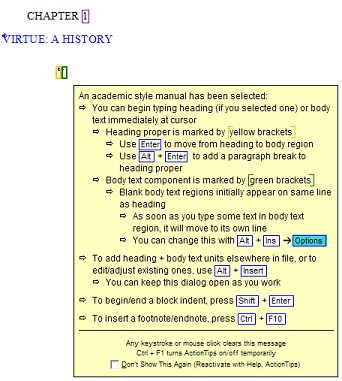
NEW! ActionTips
Popup instructions tell you what your next steps/available options are after:
Opening a file
Selecting academic style-manual format
Inserting a framework or outline element
Switching views (to Codes, Draft, etc.)
Inserting a bibliographic citation
or other important operations...
All ActionTips can be individually disabled/enabled to suit your own level of knowledge of the program
|
|
NEW! InfoTips
Popup information about existing elements is activated as you move the cursor over, or click using the mouse, on:
Footnotes/endnotes
Bibliographic citations
Index markers
Table of content markers
Cross-referencing labels
Hyperlinks
Formatting commands
and much more...
All InfoTips can be individually disabled/enabled to suit your own level of knowledge of the program
|

|
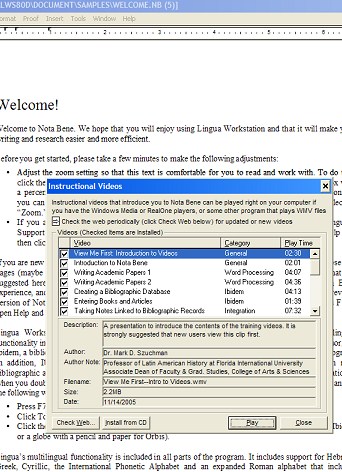
NEW! Instructional Videos
20 instructional videos which you can play on your computer are now available
Learn how to:
• Write files using academic styles
• Enter records in Ibidem
• Cite records from Ibidem
• Create note-taking files
• Create and search textbases
• Create and use hyperlinks
Requires Windows Media or similar (e.g.,
RealOne) player capable of handling
the WMV format
Available on the CD, or downloadable from
web
|
|
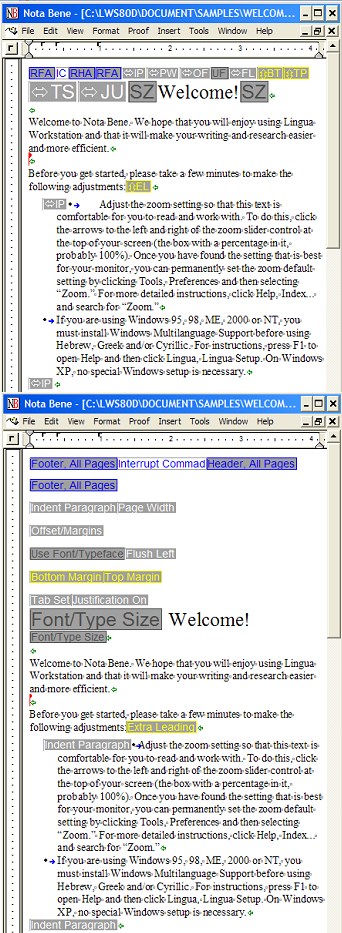
NEW! Draft View
A dramatic new draft view lets you concentrate on your writing by showing more of your text:
Text is always shown single spaced (even
if double, etc.)
Lines break at the window width
Essential layout elements are retained:
Indentation, tabs, alignment
Fonts
• Use actual face and size
• Use system face and size (configurable)
But unnecessary page elements are suppressed:
All margins (top, bottom, left, right)
Bottom-of-page display of footnotes
Running headers/footers
Double spacing (etc.)
Actual line and page breaks
The new draft view makes writing and editing easier than ever before—it lets you see as much of your actual text as possible, with fonts, indentation, multilingual characters, etc. intact, but with page borders and other non-body text elements suppressed. Best of all, it shows you all the text on a line, breaking lines to fit the size of the editing window, not based on how the printout will look, so you never need to scroll the screen horizontally to read everything you’ve written. (This makes it especially useful for comparing two documents in side-by-side windows.)
|

|
— With Instant Access Commands
Draft View gives you a wealth of options for how commands are displayed. They can be:
Hidden (as in Page-Line View [when
markers are off])
Shown as non-spacing markers (as in
Page-Line View)
Shown as two-character mnemonics (take
up space)
Shown as fuller description (take
up more space)
All commands are color-coded by category (horizontal vs. vertical formats, page elements, etc.)
If InfoTips are on you can:
Edit commands in place (right in Draft
View)
Go to next/previous instance of:
• That exact command
• Commands in the same category
Instant Access Commands give many of the benefits of Codes View, without losing formatting, multilingual text, and more
|
|
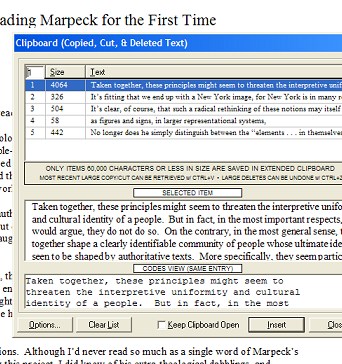
NEW! Clipboard
A new multilevel clipboard is at your fingertips:
Save up to 255 cut, copy, and delete
operations
Specify minimum size block to save
Popup Clipboard dialog shows saved
items:
• Shows size & contents of each entry
• Entries get updated in real time as you
work
• Clipboard can remain open as you work
Once you start using it, you’ll find the multilevel clipboard to be even more useful than you could have imagined
|
|
NEW! Cross-File Search
Search or replace across files
Specify folder and/or file type
Select display view used in search
• Page-Layout or Codes
Edit in place—no need to cancel search
and open file and then re-find original place
Displays statistics, with counts of:
• Total files searched
• Files containing matches
• Number of matches
Save names of files containing matches for
last search, and later go to the desired file
directly, without repeating search
|

|
NEW! Line Numbering
Automatically number lines, specifying:
Either right/left (or inside/outside) margins
• Options can vary for even/odd pages
Position in margin
Font face and size to use
Numbering interval
• Whether numbers restart on each page
• And if first line should always be
numbered
Numbering format (Arabic, roman numeral,
alphabetic letters, etc.)
|

|
ENHANCED! Frameworks
NB’s powerful academic style manuals, frameworks, and outlines are now much easier to use:
Framework icons are improved:
• Headings use yellow bracket icon
• Body text uses green bracket icon
• Both are better positioned & don’t overlap
Options have been added to suppress:
• Headings or body text
• Spacing between contiguous headings
• Blank body text regions
• Blank lines before headings at top of
page
Popup dialog now available:
• Provides easy access to all options
• Remains open as you edit
Selecting, copying, pasting elements is
easier
• Can select partial element (without
getting warning message)
• Can paste only text (stripping
commands) when pasting into file
without framework
|

|
ENHANCED! Views
— Page Layout (old “Graphics”) View
Show tabs as visible character (optional)
Better regular & alternate paragraph
symbols
Distinguish between elements that look
similar
• Counters vs. regular numbers
• Automatic dates vs. fixed dates
• System variables (e.g., current filename)
• Different kinds of tabs, spaces, hypehns
• and more...
— Codes View
Show help on any command ([Ctrl]+[F1])
Faster editing
— Easy Find Cursor
Change color (you can find the cursor
easier!)
Show arrows matching language
directionality
— Screen Colors
Select default background/foreground
colors
(Still long for the DOS yellow on blue? You got it!)
|

|
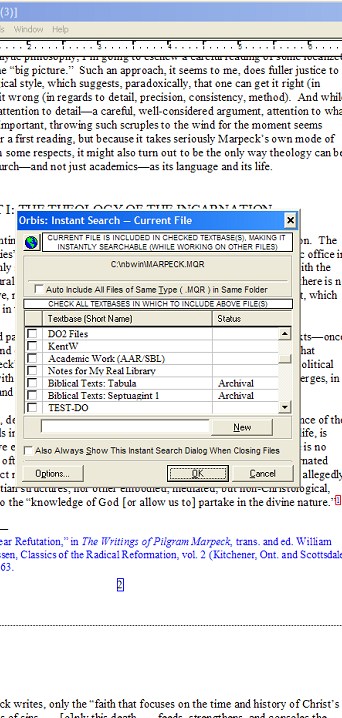
NEW! Instant Orbis
Orbis—NB’s note/idea retrieval system—has long remained the hidden wonder of NB. We’re making Orbis so easy to use that you will no longer be able to ignore it.
You can now make everything you write in Nota Bene (or copy from the web) instantly searchable simply by saving the file —no manual setup of any kind is required!
Bring all of your computer past (up to two decades worth of notes, papers, book-length manuscripts, interview transcripts, character sketches for novel, and much more) into your present, almost without blinking. Enhance your memory, and spur your imagination like never before.
Those already benefiting from Orbis can now:
Include files even while they are open in
NB!
Include up to 8192 files per folder (previous
capacity was 1024)
Exclude specific file types within a folder
Update/maintain textbases more efficiently
Switch between different textbases easier
View existing special keywords when
marking
|
|
NEW! Instant Cite
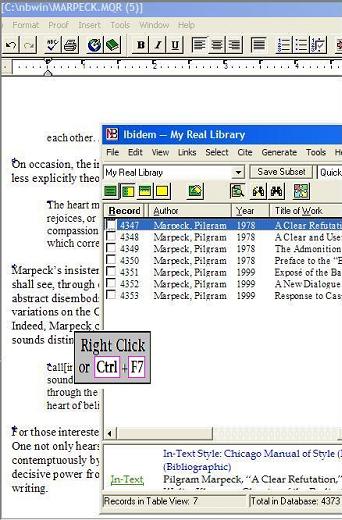
Locating a work in Ibidem has never been so effortless. Or so quick.
Put the cusor on an author’s name (as it already exists in your text), and right click or press [Ctrl]+[F7]. Voila! Ibidem will show you all works by that author, ready for you to cite.
Or right click some other word, or press
[Ctrl]+[Shift]+[F7], and look up the selected word in some other field (Title, Keyword, Annotation, etc.) in Ibidem, directly from your document.
BEFORE:
Open Ibidem
Press [Ctrl] + [F] or [T] for desired
search option
Type in what you want to search for
Press [Enter]
NOW:
Click mouse or press shortcut key
|
|
NEW! Custom Cites
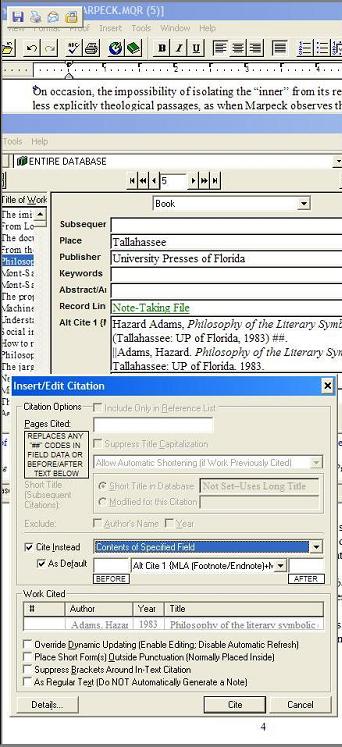
Trying to cite a work that doesn’t fit into any mold (an archival work, for example)? Or which Ibidem formats differently than you would like? Follow these easy steps.
1. Let Ibidem generate its best guess
(A new Alt Cite field is created in the
database, based on the currently
selected style)
2. Customize this Ibidem-generated format
for:
• First occurrence in file
• All subsequent occurrences
• Reference list
(Add “##” where the page number goes)
3. When citing, check the “Cite Instead” box
The result will be a customized “dynamic” cite, which can be converted into a different style if the citation format of the document changes, or properly updated (full vs. shortened form) as you edit the file, but which will look exactly the way you want it to.
You can now also cite:
The contents of a specified field
The note format without creating a footnote
|
|
ENHANCED! Note Files
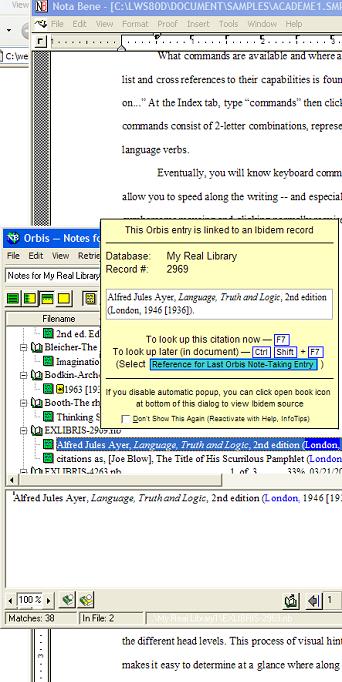
Note files linked to Ibidem records—containing summaries, arguments, quotations, etc., linked to the active bibliographic record, and which are suitable for inclusion in an Orbis textbase —are becoming more versatile by the minute:
Records with linked note files are shown
with an icon in Ibidem’s Table View
[Ctrl]+[Ins] shortcut key quickly adds
particular page references to any
paragraph in note file
Note files can be added to Orbis textbase
more easily (as file is saved)
Entries from note files retrieved by Orbis
show popup InfoTip with full bibliographic
reference
Content of note files can be included in a
generated bibliography
Greater control provided over note file
location
|
|
NEW! . . . in Lingua
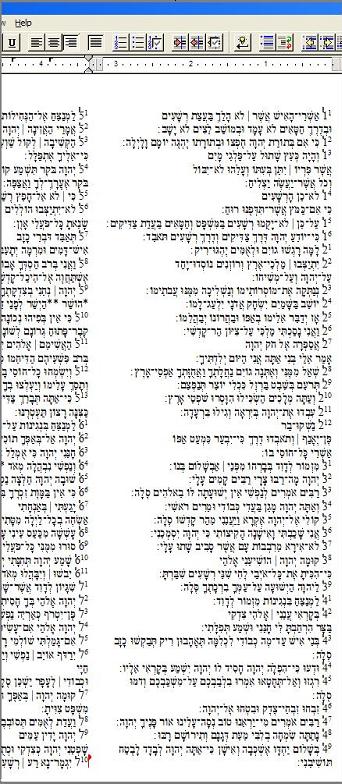
Right-to-left orientation of snaking columns
Ruler line adjusts in right-to-left regions
Now switch keyboards within an alphabet
Popup keyboard diagram enhanced:
• Resizable
• Printable
• Shows other shift states automatically
as those shift keys are pressed (while
typing in NB)
Additional characters added:
• IPA and old German characters
• Original PC characters now work on XP
Improved RTF import/export
Enhanced handling of smart (regular vs.
final) form characters
• Easier keyboard entry
• Enhanced search options
|
|


